MT4 or MT5 says Invalid Account or No Connection
An MT4 or MT5 login uses a specific trading account number, password and broker server. If MetaTrader says Invalid account, Authorization failed or No connection, start with the exact server assigned to that account. A branded broker name and the trade server in the broker’s account details can be different.
What MetaTrader's message tells you
| Status or symptom | What to check first | What confirms the next step |
|---|---|---|
| Invalid account or Authorization failed | Platform, trading login, account status and exact server | The terminal journal shows a successful authorization for the intended account |
| No connection | Internet access, broker availability and the selected server | The terminal connects to the trading server and the intended account loads |
| The account opens, but trading is disabled | Investor access or restrictions on the account | The broker’s permissions and the copier’s account status show whether it can trade |
| The terminal window is open, but the copier is offline | The hosted instance and its connected account | The copier has a recent heartbeat for this subscriber and reports the correct account |
The journal can distinguish authorization problems from account restrictions or network issues. One error message can have several causes. MetaTrader account authorization help
Find the exact server for MT4 or MT5
- Open the account details in the broker’s portal or the account-opening confirmation. Copy the trading login and full server label. Some brokers use different names for demo and live accounts or for different regions.
- Open the correct MetaTrader version. In MetaTrader, open File → Login to Trade Account and select the exact server. If it is missing from the list, consult the broker’s setup instructions or use the installer it provides. Official MetaTrader account management
- Check the Journal. Confirm the login and server against the account you intended to connect. If the broker has expired or disabled a demo, follow its reactivation or replacement process.
- For the receiving account, confirm that the trading password gives permission to submit orders. The investor password can support monitoring when offered. Test order permissions on a broker demo.
- If you use a hosted copier, check the account status there after signing in to the broker terminal. The local terminal and hosted terminal are separate sessions.
What we checked in the SignalSync readiness test
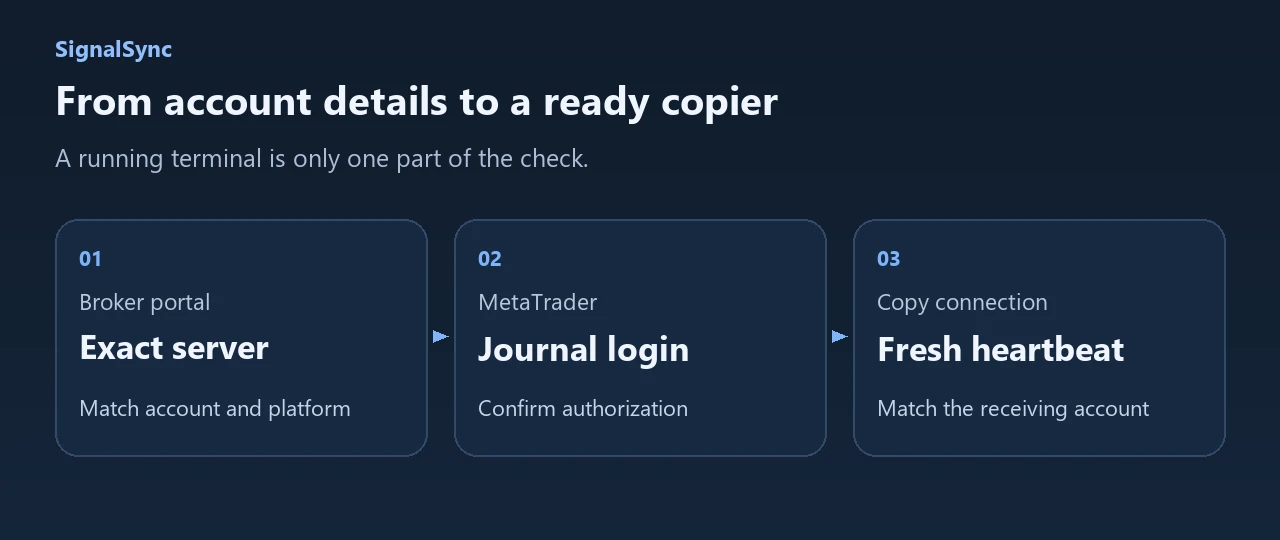
In one regression test, an MT5 process was already running while the login was unconfirmed. SignalSync withheld the ready status. The test reached ready only after the expected account and server matched and the copier provided a fresh heartbeat.
That distinction helps when you know a window opened but still have no fills. First confirm the broker login, then confirm the copier’s connection, then check whether a new source signal was sent. If a linked order was rejected, inspect the copier and broker logs for that signal. How to diagnose a missing trade
| Before contacting support | Details to have ready |
|---|---|
| Account setup | MT4 or MT5, broker, exact server and demo or live |
| Connection attempt | Timestamp with time zone and the journal error |
| Copying attempt | Connection status, expected strategy and symbol, and whether the source had opened a new trade |
If you share a screenshot, hide the login and use the official support channel. Keep trading passwords and one-time codes inside the proper sign-in flow.
Try the virtual portfolio first
The virtual portfolio and broker demo guide explains which checks each demo can answer.